What are Cookies?
Cookies are small files which are stored on a user's computer. They are designed to hold a modest amount of data specific to a particular client and website, and can be accessed either by the web server or the client computer. This allows the server to deliver a page tailored to a particular user, or the page itself can contain some script which is aware of the data in the cookie and is able to carry information from one visit to the website (or related site) to the next. To understand more about cookies and how they work go to this website for more information (http://www.whatarecookies.com/). What is Cache?
Cache is often referred to as Temporary Internet Files and is located in a folder on your Systems Drive. This folder usually contains a kind of travel record of the items you have either seen, heard, or downloaded from the Web (whether it be Images, Sounds or Web Pages).
Storing files from a website can help make browsing the Web faster because it usually takes your computer less time to display a Web page when it can call up some of the page's elements or even the entire page from your local Temporary Internet Files folder. This blog will help explain (How To) Clean Your Cookies & Cache for Microsoft Edge, Mozilla Firefox and Google Chrome. |
|

Internet Explorer 10 And Below PLEASE BE ADVISED!!! ANY OLDER VERSIONS OF INTERNET EXPLORER IS NO LONGER SUPPORTED BY MICROSOFT.
PLEASE CLICK THIS LINK TO UPDATE TO Microsoft Edge.
THIS COMES AS A WARNING TO ALL MEMBERS WHO USES OLDER VERSIONS OF INTERNET EXPLORER.. |
|
Cleaning Microsoft Edge's Cookies & Cache Over the last few years Microsoft has been working to redo its most popular browser Internet Explorer. Microsoft Edge browser is the main browser for storing Cookies & Cache on your computer and is the one browser that typically needs cleaning out the most.
Follow the steps below and you should have a better experience with Microsoft Edge: Open Internet Explorer

Look on the Top Right of the browser and locate the three dots.

Click on the three dots and locate Settings
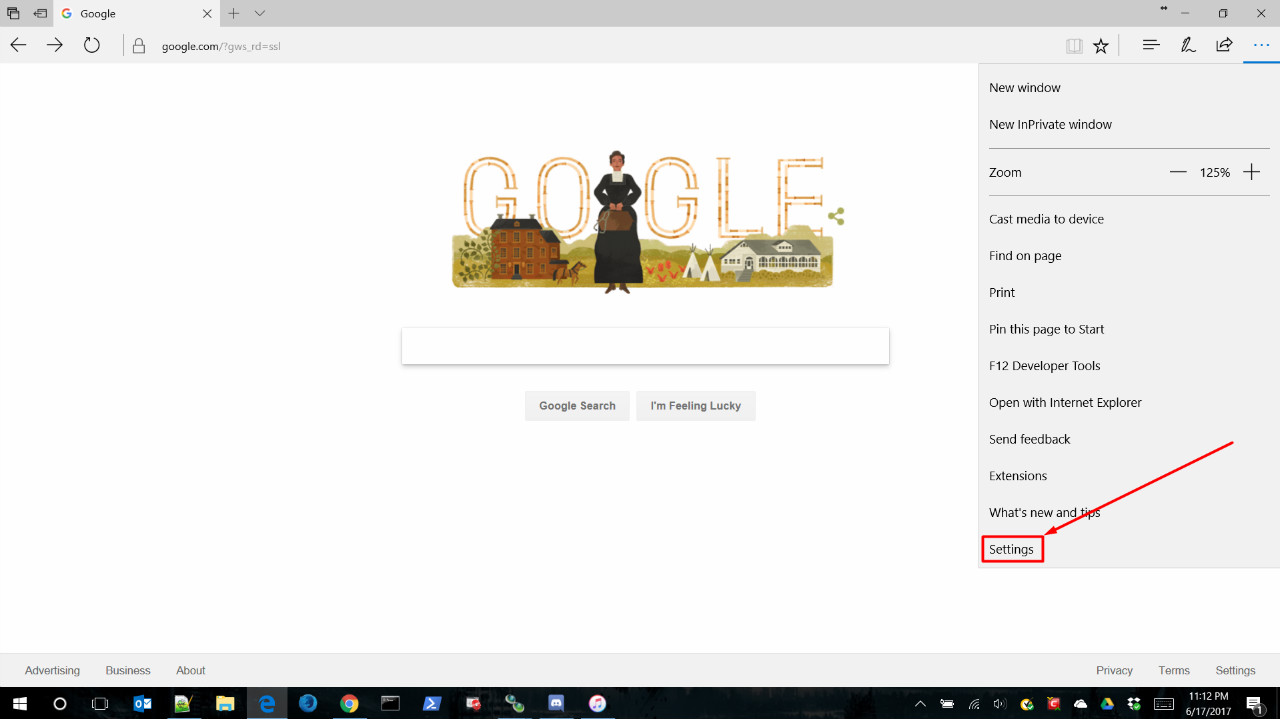
When the Settings opens to the right scroll until you find Clear Browsing Data

Check off the areas you wish to clean then click on the Clear button.

After you click on the Clear button the page will say it is Clearing Data

When this is finished, you can click either continue browsing or you can close the browser. |
|
Mozilla Firefox (Older Versions) PLEASE BE ADVISED!!! ANY OLDER VERIONS OF MOZILLA FIREFOX IS NO LONGER SUPPORTED BY FIREFOX.
PLEASE CLICK THIS LINK TO Update Mozilla Firefox.
THIS COMES AS A WARNING TO ALL MEMBERS WHO USES GECKO BASED INTERFACES.. |
|
Cleaning Firefox's Cookies & Cache Like Microsoft Edge Firefox uses the same type of caching properties. The only difference between these two is they have different cache folders. Below is a small overview of what Firefox's data stream will look like
Browsing History: contains a log web locations you have previously visited.
Download History: keeps a list of files you've downloaded.
Saved Form Information: contains a list of phrases you have entered in text fields, such as web searches, and name and address fields.
Cache: stores temporary files, such as web pages and other online media, that you have downloaded from the Internet.
Cookies: stores files created by web sites, that store information on your computer, such as your preferences when visiting that site.
(When a web site has a "remember this" checkbox, they are using a cookie.)
Saved Passwords: contains a list of usernames and passwords you have opted to have Firefox remember.
Authenticated Sessions: keeps you logged into secure web sites, you have already used the password manager to log in to.
Follow the steps below to clear Firefox's Browsing History. |
Open Firefox
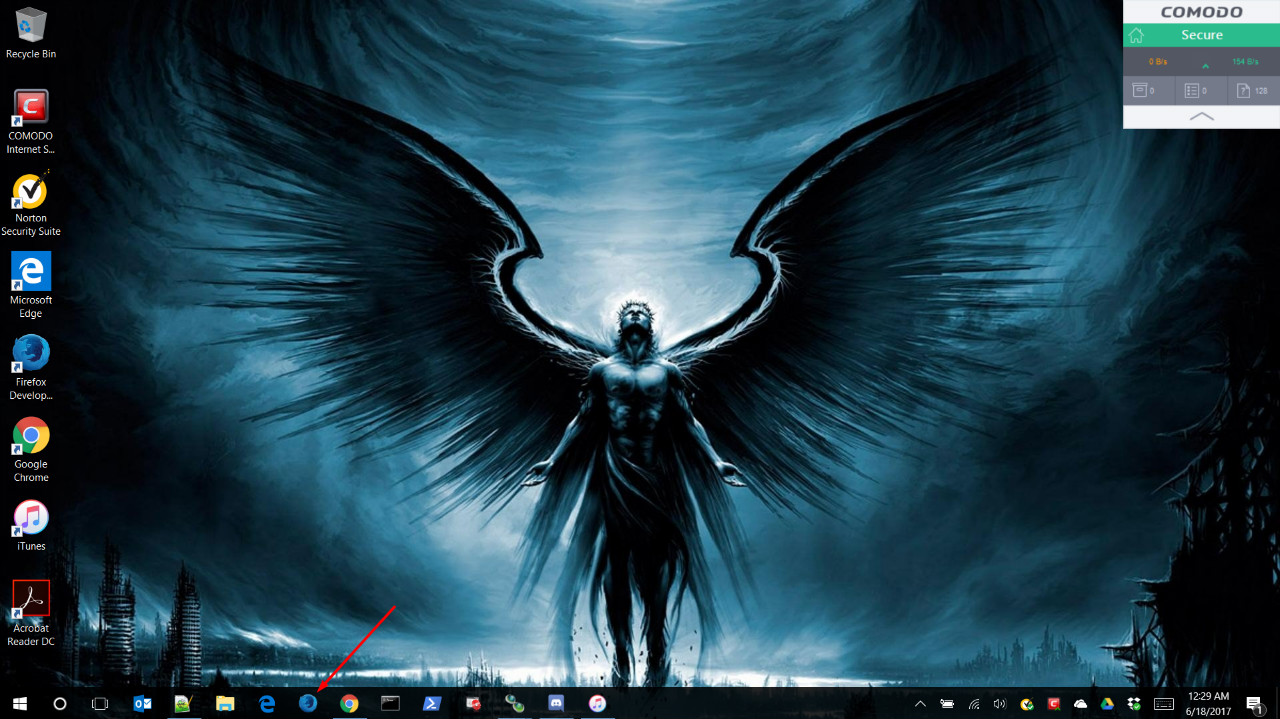
Locate the three bars on the far right of the browser or locate the Tools menu and click it.
Default Location

Expanded Menu Location

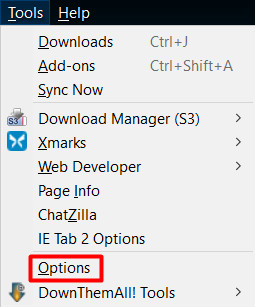
Click on one of the locations then you will now need to locate Options.
Button Menu

Tools Menu
Once you have clicked on one of the locations a new window will appear with all of clearing options.
You will need to locate Privacy

When you click on the Privacy button locate the link that says Clear Browsing History
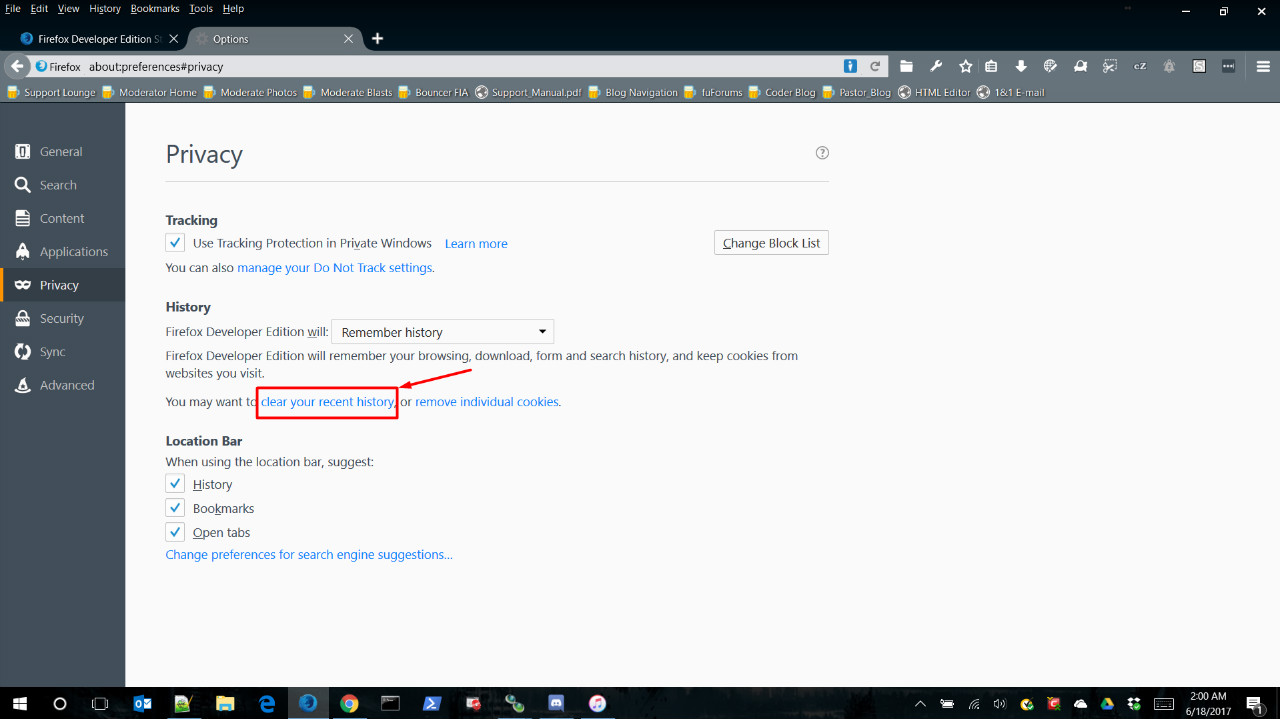
The best option to choose is to Clear Everything
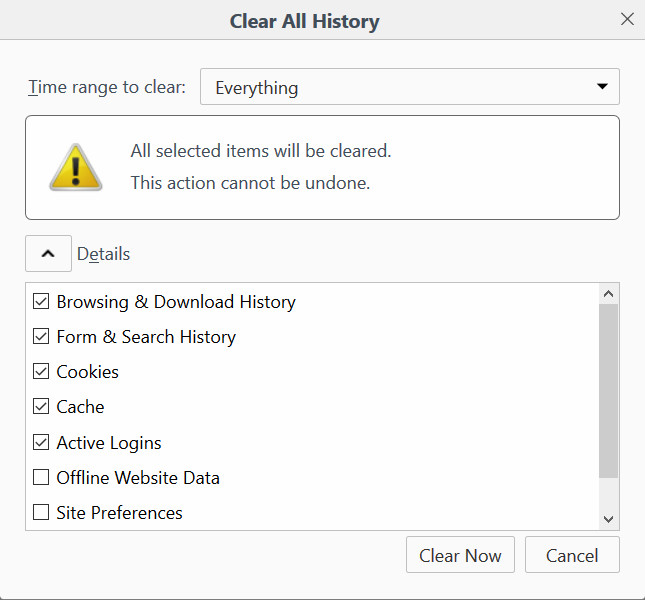
Automatically Clean Firefox's Cookies & Cache Once you have chosen the appropriate checkmarks click on the Clear Now button.
The box will disappear and whatever you checked will be cleared of its data.
If you want Firefox to clear its history automatically
while in the Privacy section of the settings click on Use Custom Settings under the History section.

Locate and tick the checkbox that says
Clear history when Firefox Developer Edition closes.

If you want to change what Firefox deletes when the browser is closed
Click on the settings as seen in the above image.
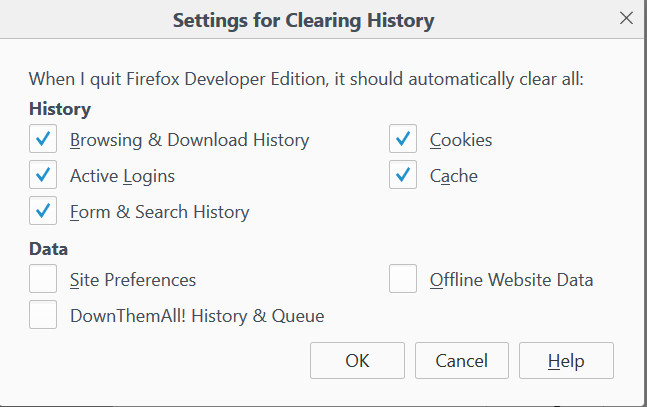
After you click on the OK button the browser will now clean itself when it closes. |
|
Google Chrome (Older Versions) PLEASE BE ADVISED!!! ANY OLDER VERSION OF GOOGLE CHROME IS NO LONGER SUPPORTED BY GOOGLE
OLDER VERSIONS CAN BE UNSTABLE TO USE.
PLEASE CLICK THIS LINK TO Update Google Chrome.
THIS COMES AS A WARNING TO ALL MEMBERS WHO USES CHROMIUM BASED INTERFACES.. |
|
Cleaning Google Chrome's Cookies & Cache Google Chrome is a freeware web browser developed by Google. It was first released in 2008, for Microsoft Windows, and was later ported to Linux, macOS, iOS and Android. Chrome is also the main component of Chrome OS, where it serves as a platform for running web appsand uses a browsing engine named Blink that has been developed for Chromium based browsers.
Follow the steps below to clean Google Chrome's browsing history: |
Open Google Chrome

Locate the three dots that is located on the Top Right of Chrome.

Click on those three dots and a menu will open
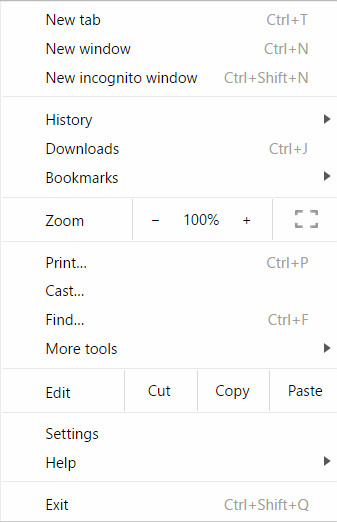
Locate and hover your mouse on History and another menu level will appear .

When the second level menu pops open locate the History text in that and you will be directed to the browsers history page

Locate and click on the Clear Browsing Data on the left menu
You will be directed to the browsers Settings page.

Make sure where it says "Obliterate the following items from:" it is selected to "The Beginning of Time"

Once you have it set to "Obliterate Everything" choose what you want to obliterate and click on the "Clear Browsing Data button.

The popup box will disappear and you can either continue browsing or you can close your browser and go about your day. |
|
Cleaning App Cache We all are not able to get onto fubar using a laptop or desktop computer. Either because of work or some form of computer restriction that does not allow certain sites to load. Fubar does have an app that allows members to log in from their mobile device or from their tablet. The two major operating systems are that of "Android" and that of "iOS (or AppleOS)". Below will show you how to clean the apps cache for both "Andriod" and "iOS". Andriod App Cache Open or unlock your Android Device to the home screen

Open the area with all your apps and click on the Search Area

In the Search Area type the word Settings
Click on the app associated with the search

When your settings loads scroll down until you see Apps
Click on Apps
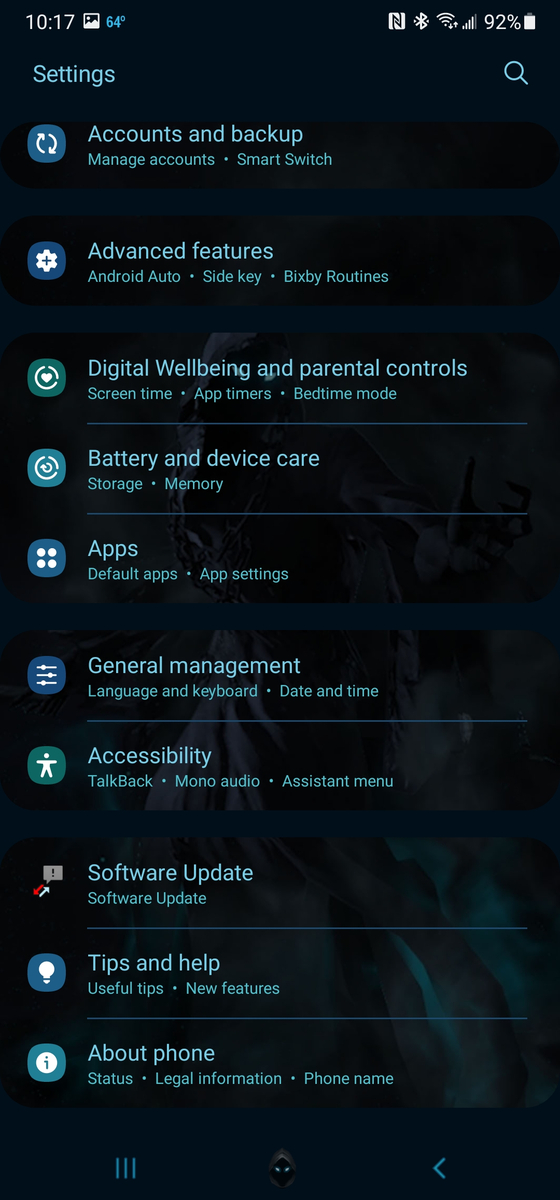
When the apps screen loads scroll down until you see the app named fubar
Click on the fubar app

Once opened scroll down to where it says Storage and click on it

On the bottom of the storage screen is a button that says Clear Cache
(Do not click on Clear Data as this will erase your login info).
Click on the Clear Cache

Once the cache is cleared you will see it says 0mb stored.

This process is now complete and you can reopen the app and use it however you like.
Please Note: Clicking on the Clear Data button will remove any data saved.
(This does include login information)
AppleOS (iOS) App Cache
Open or unlock your iPhone Device to the home screen

Once you are on your home screen look for Settings and click it

Once you are in the settings look for General and click it
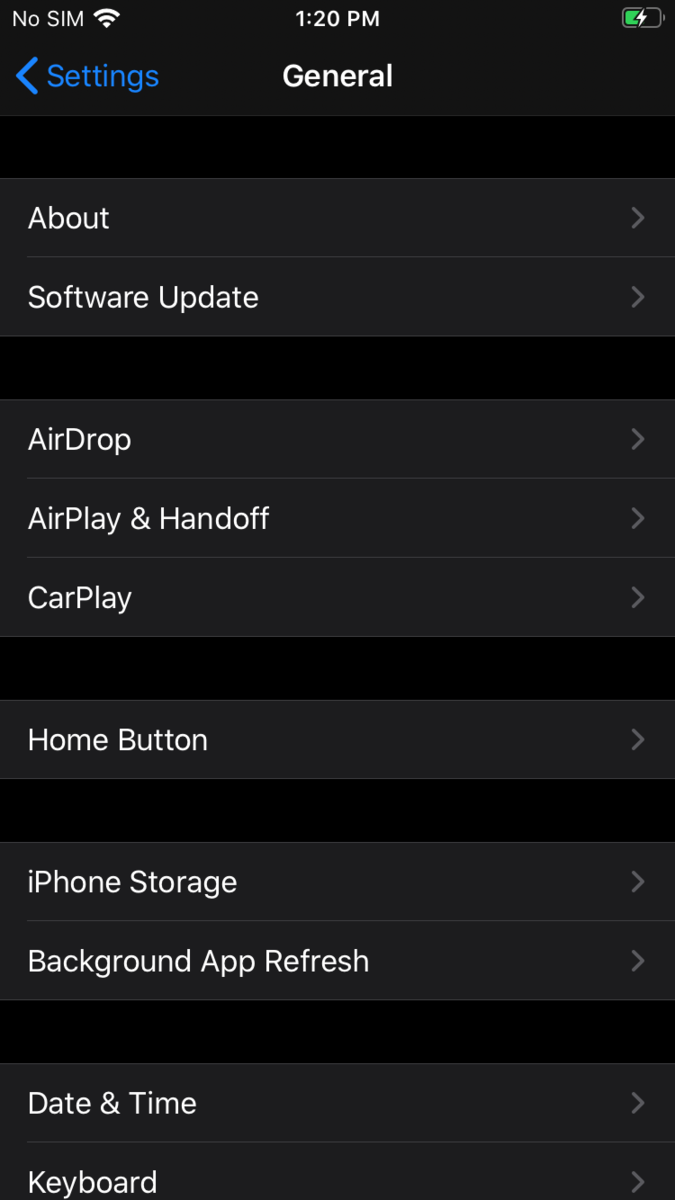
Once inside General, locate and click iPhone Storage

Once inside locate and click on the desired app
(Fubar is chosen app for blog)
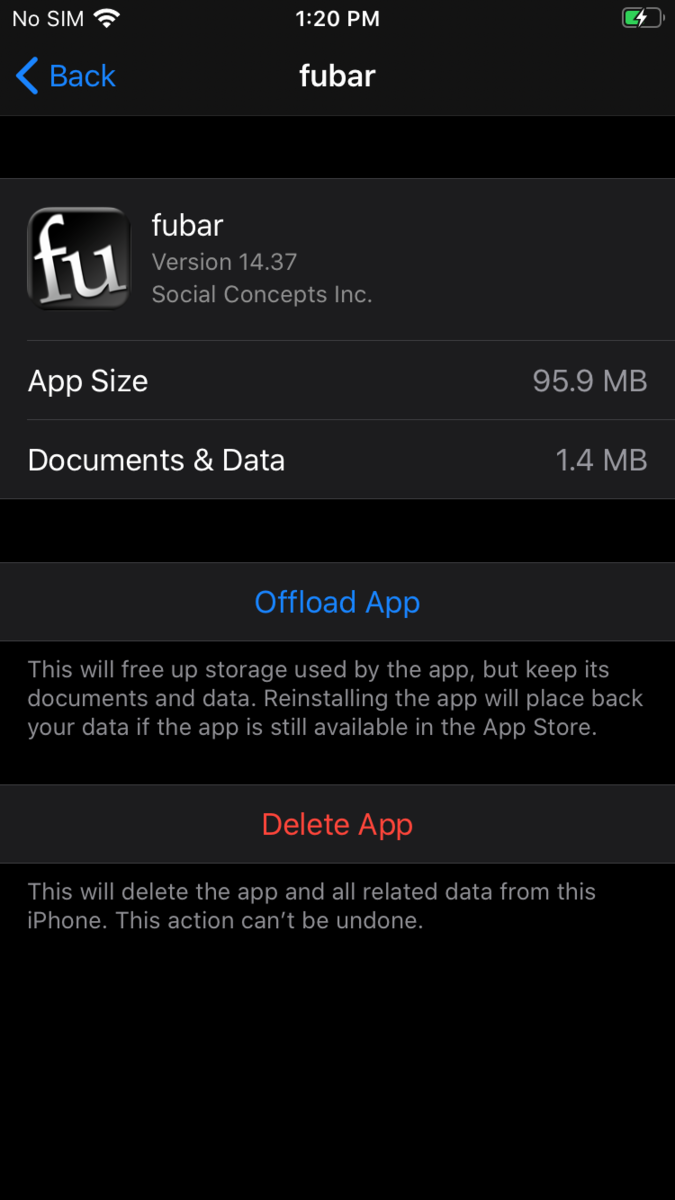
Once inside click on the Offload App button

Once the cache is cleared it will go off the screen until you open the app again.
This process is now complete and you can reopen the app and use it however you like.
Please Note: Clicking on the Delete App button will remove any data saved as well as the app itself.
|
In Conclusion, each browser or device uses a different method to cleaning Cookies & Cache, but the main browser that will need cleaning is Internet Explorer. The reason I say this is because even though each browser has their own Cache folder a small part is still stored on the Computers Temporary Folder (or in the folder Internet Explorer is defaulted to). Always make sure to clean your browser daily (especially if your on a site with heavy images like Fubar.com, Facebook or a Image Hosting Site like Photobucket). |
|
Sidenote: Due to the Overwhelming amount of browsers currently available,
I have only listed the three most commonly used with Fubar.com.
More browsers can be found by clicking this link (List Of Browsers).
|
|
If you have any further questions about this or any of the other browser topics
Please feel free to leave a comment on this blog or private message a Fubar Bouncer and they will try to help you the best they can.
For faster results you can also visit the Support Lounge and the staff/members will help you to the best of their abilities.. |




 Thornz MMM Beauty...


 Ashafrassh